
Client Setup: Train It and Connect Telegram
1. Business Profile
The first visit asks for the business details: name, website, phone, address and opening hours. The agent uses them in its answers. They are shared with the client's other apps and can be changed any time under Business Profile.
2. Train It
- Open Setup, then Knowledge.
- Click Train. It reads the website in the Business Profile: the homepage and up to 19 important pages in about a minute.
- Add Business Facts for anything the website does not say or gets wrong: holiday hours, prices, policies. Facts always win over website text and stay when the client retrains.
- Write short instructions under Personality, for example: be warm and brief, always mention the free consultation.
3. Test It
Open Setup, then Test, and ask the questions customers ask. This works before Telegram is connected. Test chats show in the Inbox.
4. Connect Telegram
Open Setup, then Telegram. There are two ways to connect, and the client can switch between them at any time.
Their own Telegram account. Customers keep messaging the client's normal account and the agent answers as them.
- Tap Open Telegram and press Start in the chat that opens.
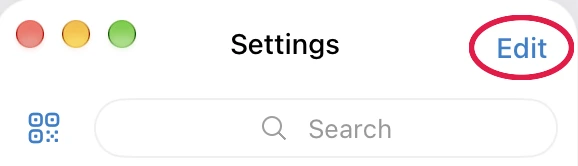
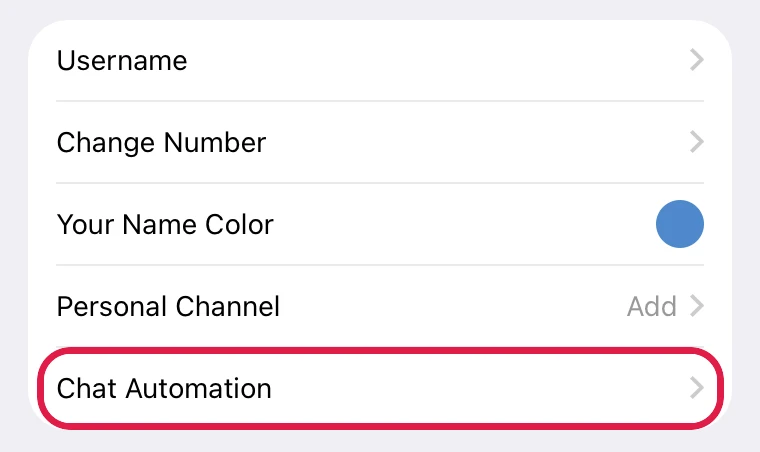
- In Telegram, open Settings, then Edit profile (on a phone, tap Edit at the top of Settings), then Chat Automation, and type the name shown on the page.
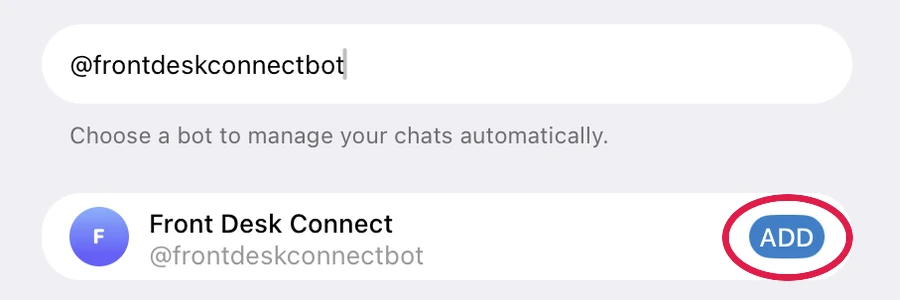
- Leave Reply to messages switched on. The page shows Connected as soon as Telegram confirms.
A bot. The business gets its own line that customers message.
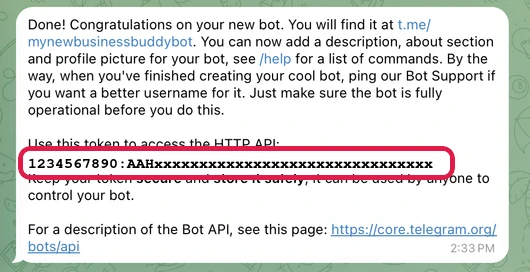
- In Telegram, open BotFather and send
/newbot. - Give the bot a name (the business name) and a username that ends in
bot. - BotFather replies with a long code. Paste it on the Telegram page and click Connect.


When the bot connects, its name, picture, about line and welcome text are filled in from the client's Business Profile: the business name, the logo and the description. After they change their Business Profile, Update bot profile on the Telegram page applies it again. A client who connected their own account keeps their own name and photo; nothing on their personal profile is changed.
5. Share the Chat Link
The Dashboard shows a link that opens a Telegram chat with the business. The client can put it on their website, Google Business Profile, Instagram bio, email signature or a QR code.